
How do I schedule a campaign with a start and end date?
Quick answer
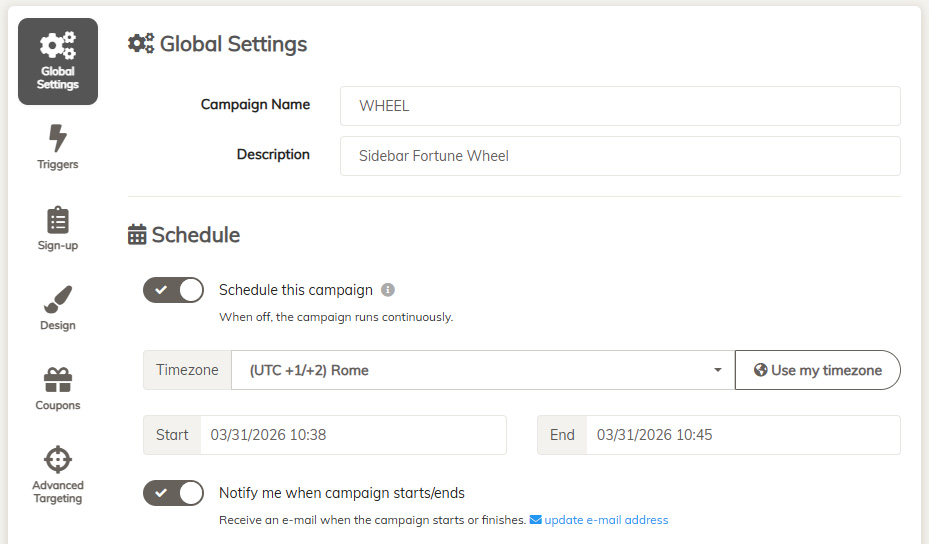
Open the campaign's Global settings, enable Schedule and pick a start date and an end date in your store's timezone. The campaign turns itself on and off at those times, and you can ask for an email notification when it starts and when it ends. Outside the window the campaign stays saved but hidden.
By default, campaigns run continuously — they fire whenever a visitor hits your shop. The Schedule feature lets you define an exact start date and end date so the campaign only runs within that window. This is perfect for Black Friday promotions, seasonal sales, flash deals, or any time-limited offer.
How to Enable Scheduling
Step 2 — Find the Schedule this campaign toggle and switch it on.
Step 3 — Set your Start date and End date using the date/time pickers (format:
MM/DD/YYYY HH:mm).Step 4 — Save and publish your campaign.
Automatic Disable at End Date
When the end date is reached and a visitor loads your shop, CrazyRocket automatically disables the campaign and removes it from rotation. You don't need to manually turn it off.
Get Notified When the Campaign Starts or Ends
Enable the Notify me when campaign starts/ends toggle (found just below the date pickers) to receive an email at the moment the campaign starts and again when it ends.
- The start notification is sent the first time a visitor triggers the campaign within the scheduled window.
- The end notification is sent when the campaign is automatically disabled at the end date.
- Each notification is sent only once per scheduling run, even if many visitors hit your shop simultaneously.
Notifications are sent to your account email address. To change it, click the update e-mail address link next to the toggle.
Tips
- Schedule campaigns to match your marketing calendar — set up a Black Friday campaign weeks in advance and it will activate automatically.
- You can have multiple campaigns with non-overlapping schedules ready to go, all enabled at once.
- Enable notifications so you always know when a time-sensitive promotion is live or has finished.
People also ask
Which timezone does the schedule use?
The timezone set under Setup > Global Settings in the dashboard. Check it before scheduling a flash sale.
Can I schedule a Black Friday campaign now?
Yes, build it today and schedule it for the Black Friday weekend. The Black Friday playbook walks through the whole setup.
Still stuck?
Our support team always replies. Send us a message and we'll help you sort it out.