
How do I send leads to Zapier?
Quick answer
Create a new Zap, choose Webhooks by Zapier as the trigger app and Catch Hook as the event. Copy the custom webhook URL, paste it under SETUP > INTEGRATIONS > Zapier in the CrazyRocket dashboard and save. Run a test sign-up on your store so Zapier catches a sample, then connect any action: a Google Sheet, a CRM, an SMS tool.
1) Create a new ZAP
Log in to your Zapier account and click on the Create Zap button.
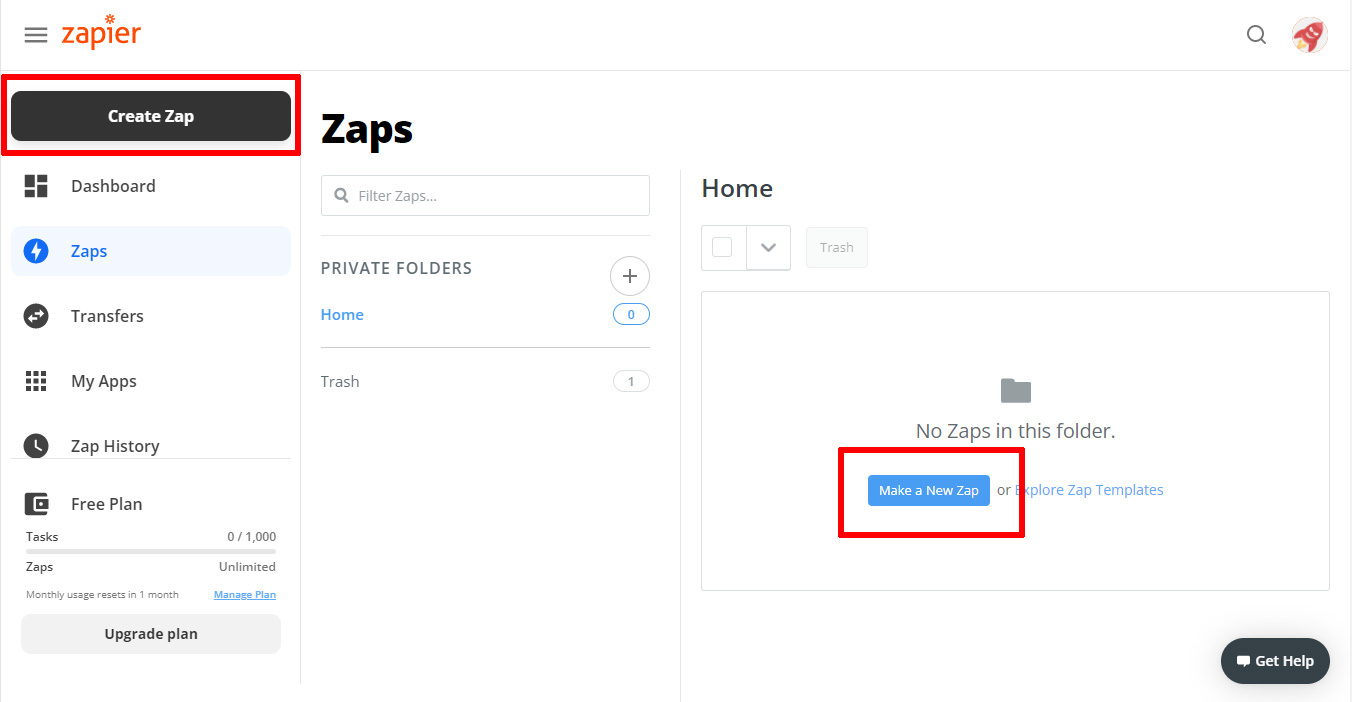
2) Add the Webhooks by Zapier App
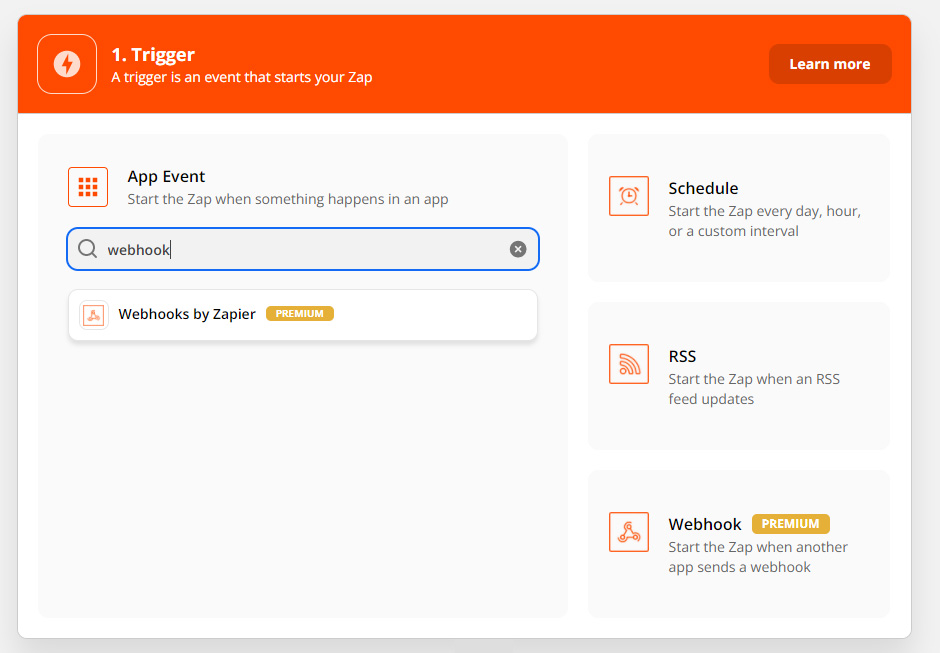
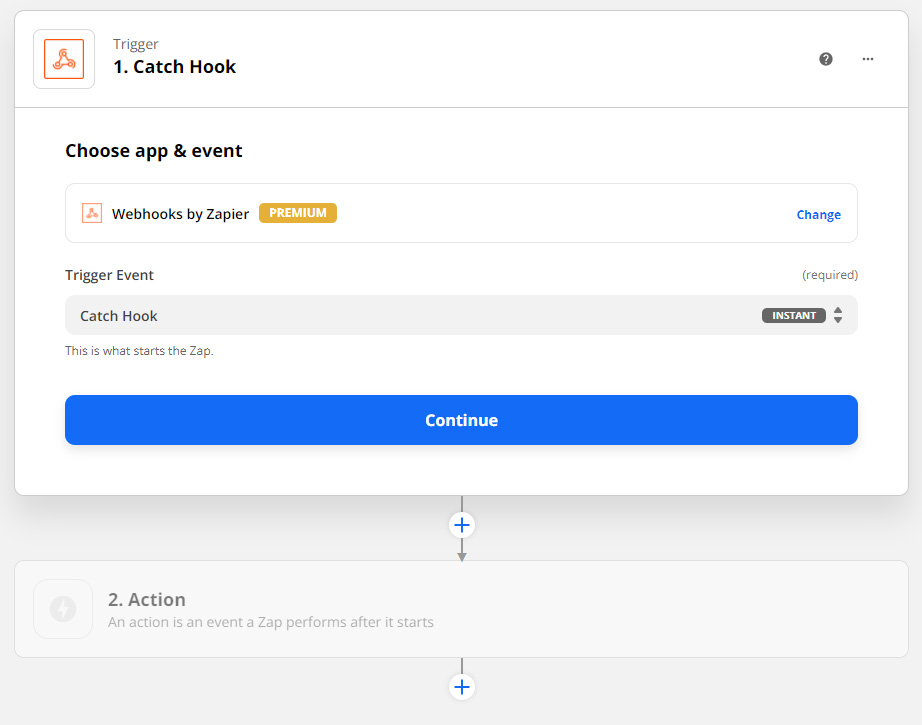
3) Set the trigger event to "Catch Hook" and click on Continue
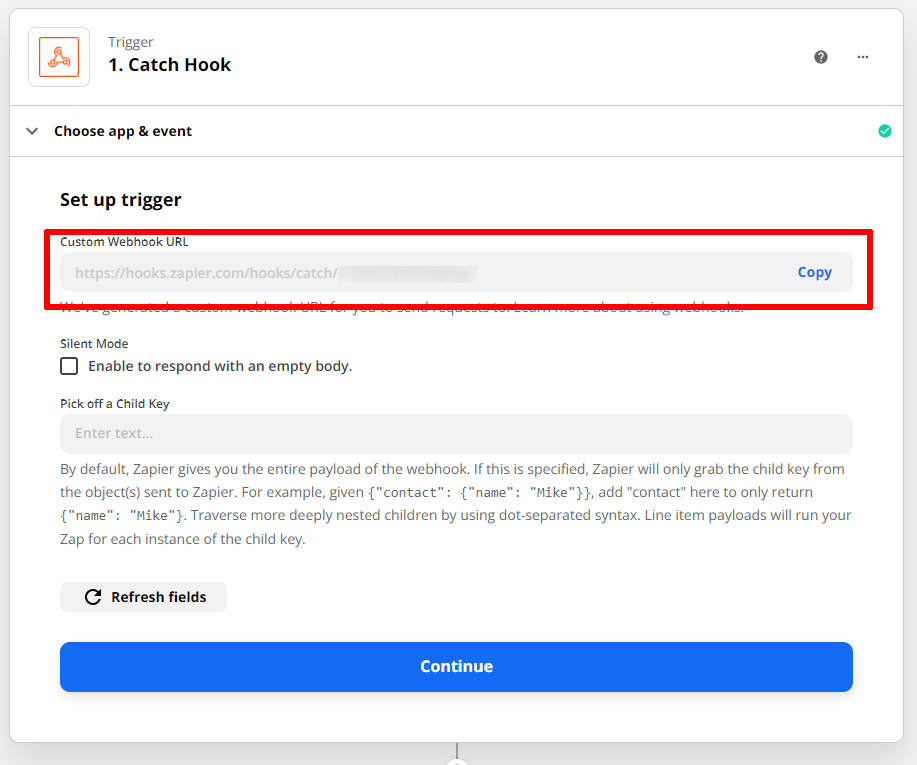
4) Copy the Custom Webhook URL
Copy your Custom Webhook URL and click on Continue.
5) Paste the Custom Webhook URL
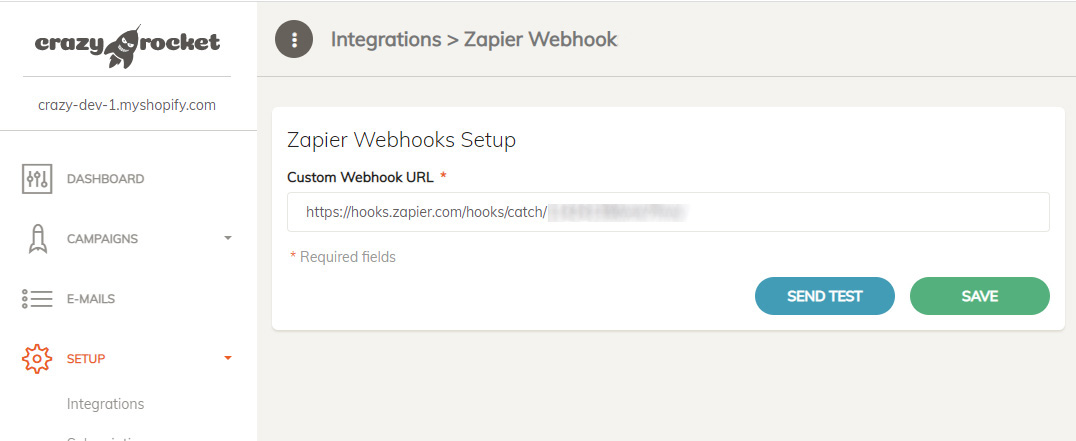
- Log in to your CrazyRocket Dashboard
- Click on Setup > Integrations > Zapier Webhook.
- Paste the Custom Webhook URL previously copied from the Zapier Admin
- Click on SAVE and then SEND TEST
6) Test your trigger
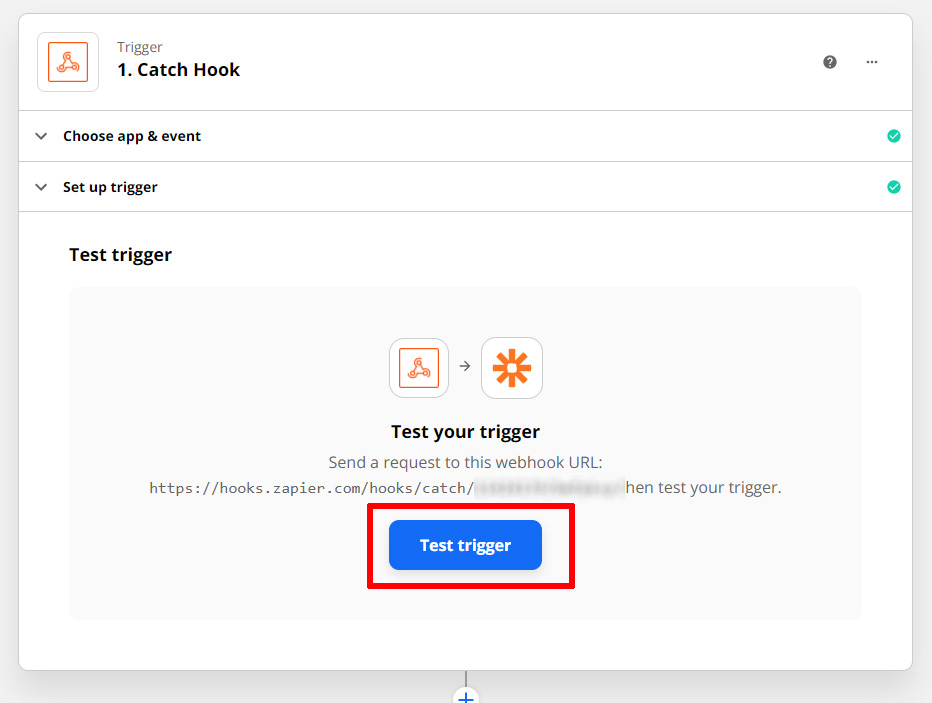
Switch to Zapier and click on TEST TRIGGER.
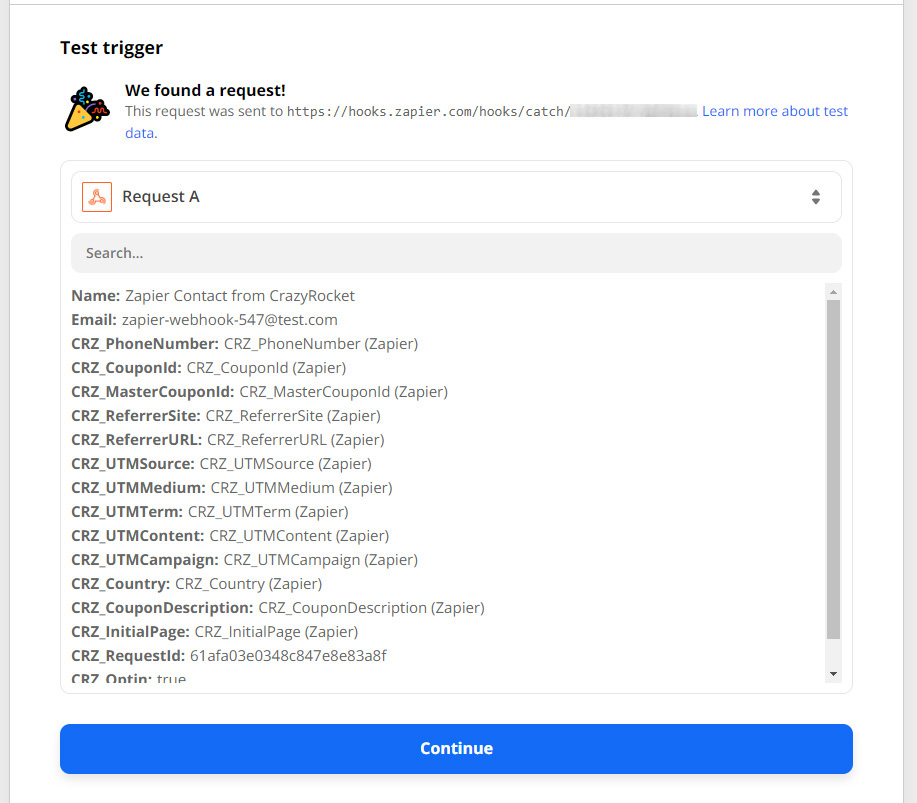
You should see the test request sent previously from the CrazyRocket dashboard.
The Name, Email, and CRZ_* fields can be easily accessed within your action editor later.
Next to CRZ_Tag (the campaign's custom tag), campaigns with a Quick question before the game send CRZ_Survey (the answer the visitor picked), CRZ_SurveyTag (its tag) and CRZ_Tags (campaign tag and answer tag, comma separated). They are empty when the campaign asks no question.
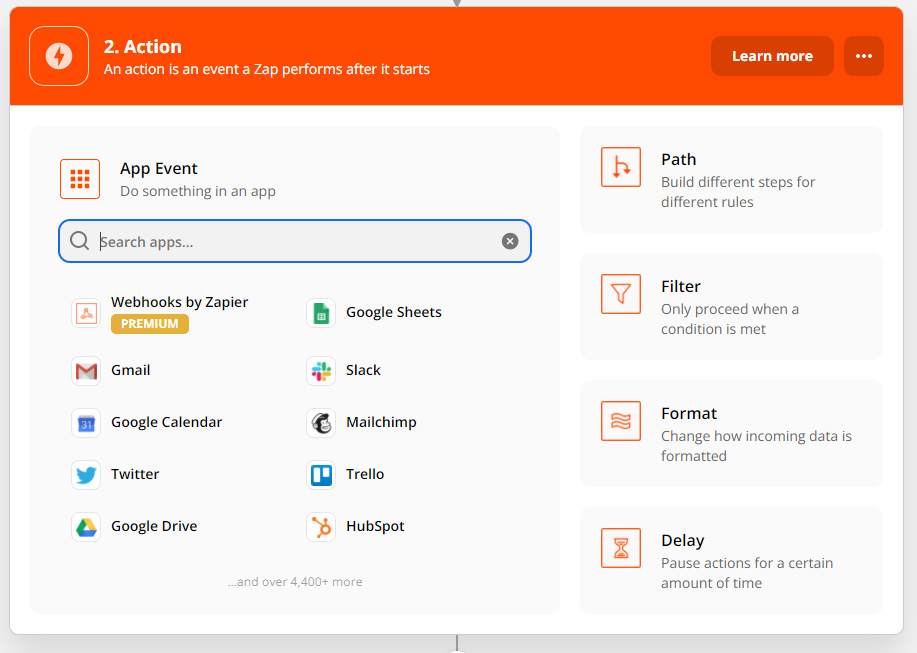
You are now ready to use the data received from CrazyRocket:
just add the desired actions and implement your Zapier automation! 😉
People also ask
What does the webhook payload contain?
The lead's email, name and phone when collected, the coupon won, the campaign, the UTM parameters, the referrer, the country and the device type.
I'm on Shopify. Do I need Zapier to automate things?
Not necessarily: Shopify Flow can tag customers and start flows natively from the CrazyRocket trigger.
Still stuck?
Our support team always replies. Send us a message and we'll help you sort it out.